
Calls · Experimental
Receive office SIM calls and talk from your computer, with customer details and bookings in front of you. Keep every conversation connected to your rental work, from the first ring to the next follow-up.
Requires an Android 11 or later phone with a SIM and the desktop app.
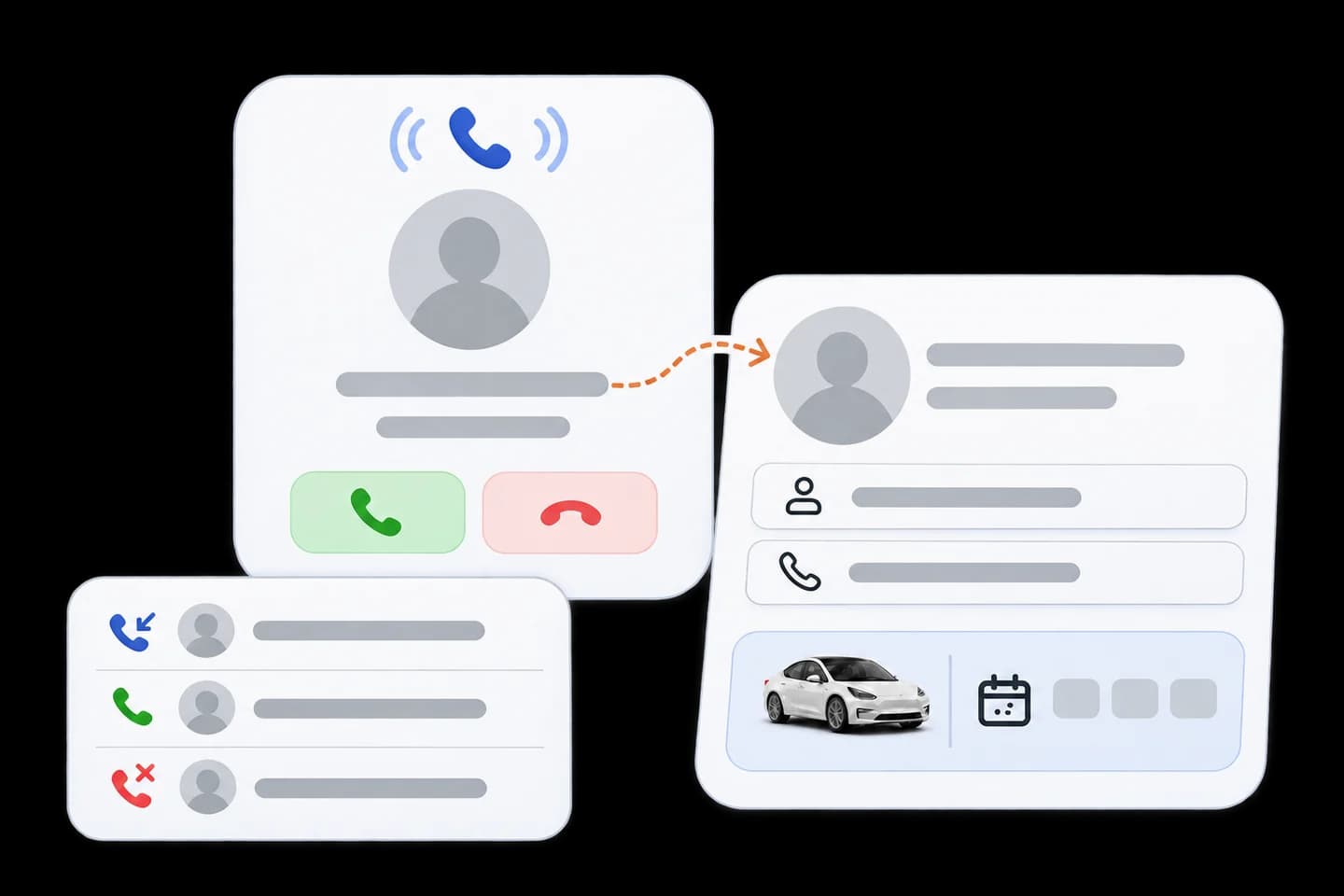
Every call in context
Find the customer and booking information you need while keeping the conversation in the same workspace.
Know who is calling
See customer details when their number is recognized. Link a new number to an existing customer or create a customer from the caller card.
Bookings at hand
Review the caller’s bookings and balance, then open their customer profile or the related booking while you talk.
Talk from your computer
Answer the call, manage volume and microphone, or return audio to the phone when needed with a supported connection.
A clear contact history
Return to incoming, outgoing and missed calls, with the call time, duration and linked office phone.
Record when you need to
Start recording from the call controls when you need to keep the details, then listen to saved recordings from call history.
Turn a conversation into follow-up
When AI features are enabled, request a transcript, summary and follow-up points from a recording. Review the details before relying on them.
From connection to follow-up
Connect your office phone
Open Fleetraly desktop and follow the guided setup to connect an Android phone with your office SIM.
Answer with the details at hand
An incoming call brings up the caller card and available customer information. Open the booking or customer profile and take the call from your computer.
Return to what you agreed
Review the call history, listen to a recording if you made one, or request analysis to review a summary and follow-up points.
Ready to connect your office phone?
Calls are experimental and compatibility varies by phone. The guided desktop setup helps you complete pairing and check the connection.
Go to downloadsAn Android 11 or later phone with a SIM. iPhone is not currently supported.
Fleetraly desktop on the office computer, with initial phone pairing completed.
Keep the computer awake and both devices connected while using calls.
A workspace administrator connects the phone. Customer and booking information remains subject to user permissions.
What do I need to use calls?
You need an Android 11 or later phone with a SIM, Fleetraly desktop, and a workspace administrator to complete guided pairing. Keep the devices connected and the computer awake. Compatibility varies by phone because the feature is experimental.
Can I connect an iPhone or use only a browser?
iPhone SIM calls are not currently supported. Setting up and using office phone calls requires Fleetraly desktop and a supported Android phone.
Are all calls recorded automatically?
You start recording from the call controls when needed. You can later listen to a saved recording from call history.
What does call analysis provide?
When AI features are enabled and the analysis service is configured, you can request a transcript, summary, topics and follow-up points. Check names, dates and amounts against the recording. Analysis does not automatically create bookings or tasks.
Every call starts better service
See how Fleetraly brings office calls, customer profiles and bookings together in one workspace.